

einfach. produktiver. digital – mit Outlook, OneNote, Office 365 und SharePoint

Creating, Sorting, and Grouping Tasks in Outlook

Portrait photo of Office 365 expert Holger Wöltje – in a suit, with glasses and a beard.

Holger Wöltje

Experte für produktives digitales Arbeiten

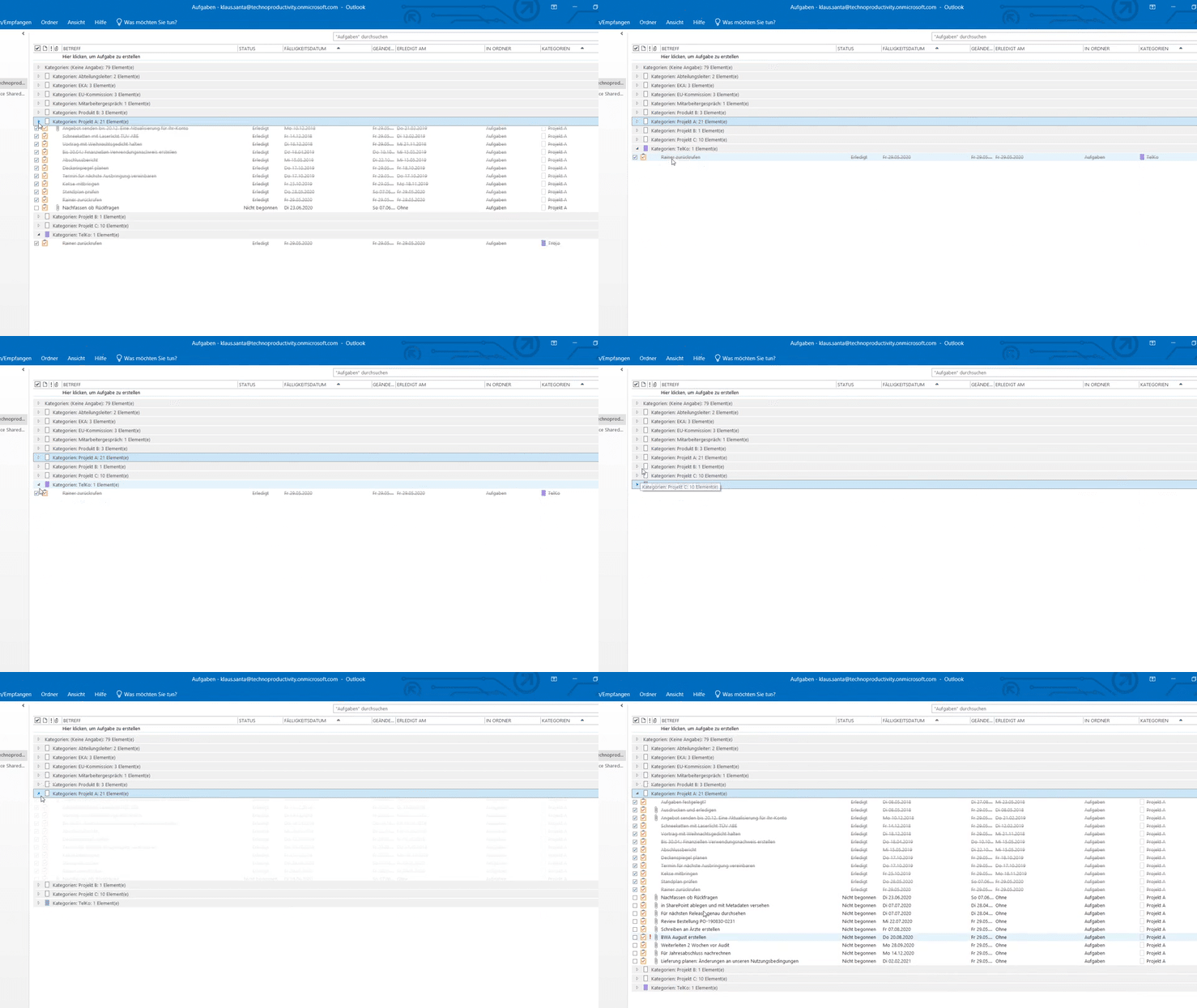
Screenshot from the e-learning course: Outlook tasks categorized and grouped – the "Project A" category is expanded, showing all associated tasks, while the list with other groups is collapsed.
Improve Your Outlook Time Management with Tasks - Tips from the Online Seminar
How to Use the Outlook Task Feature – How to create tasks in Outlook, group them by project, and display them in the calendar.

Inhaltsverzeichnis (klicken zum Öffnen):

Create, Sort, and Group Tasks by Project in Outlook

Below your calendar or as a list view grouped by projectMicrosoft Outlook offers various ways to organize your tasks and create a simple structure for your workday. Whether your task list has only 11 or 823 entries, with the right functions for filters, groupings, and individual settings, you can clearly customize your task views, keep track of the essentials, and work more efficiently. In the following three videos, you will learn how to:

  • create tasks in Outlook,
  • display them below your calendar,
  • sort them,
  • group them by project – and
  • tips and tricks to simplify the planning of your Outlook tasks.

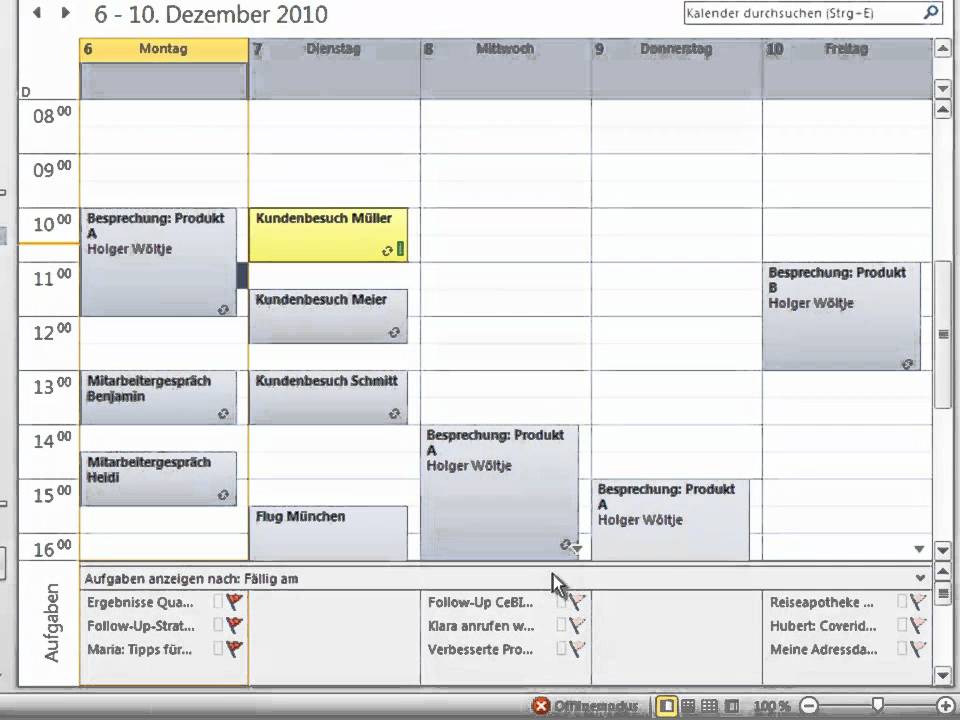
Manage Tasks in the Outlook Calendar and Display by Due Date

A more detailed video course, which also offers tips for email management with Outlook, tips & tricks for the calendar, and above all, a combination of all these elements for email follow-up with tasks, as well as the combination of tasks and calendar for weekly planning, can be found here:
To the detailed, free video course “Time Management with Outlook”

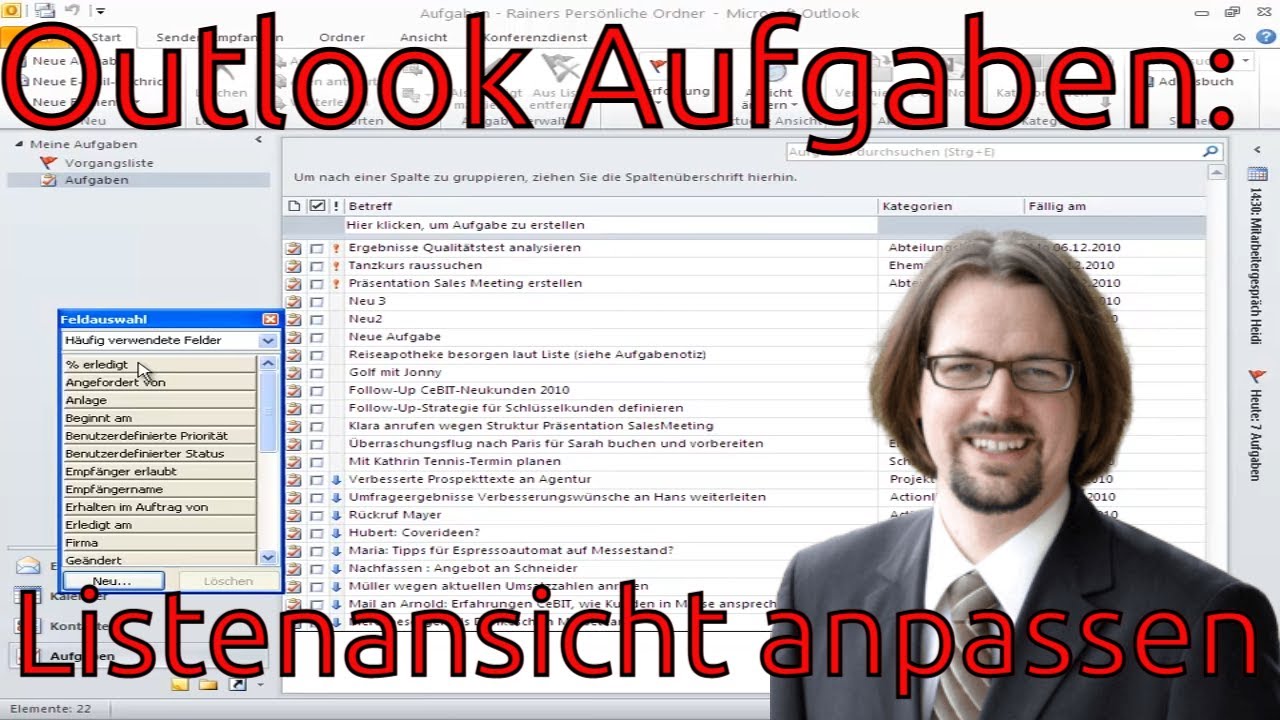
Simple To-Do Lists, Customize Task List View, Change Fields
Group Outlook Tasks by Project, To-Do List for This Week, Display Calendar Weeks

Holger Wöltje, der Experte für Zeitmanagement mit Outlook, OneNote, Teams und SharePoint, zeigt Ihren Mitarbeitern verständlich und einfach, wie sie sich papierlos digital organisieren, strukturiert Dateien teilen und ihre E-Mails in den Griff bekommen.

Mehr über Videokurse, Online-Seminare & Beratungs-Workshops für Sie finden Sie auf der Startseite:
Online-Seminare & Videokurse

Teilen / Empfehlen per:

Scroll to Top

Diese Seite teilen/weiterempfehlen – bitte wählen Sie, wie/wo:

E-Mail
Drucken
LinkedIn
XING


Bei Klick auf die Schaltfläche für LinkedIn, Xing oder Teams folgen Sie einem Link zum jeweiligen Anbieter, dabei öffnet sich die Website des jeweiligen Anbieters in einem neuen Tab/Fenster und erhält die Adresse dieser Website als Parameter übergeben. Das Teilen per E-Mail öffnet eine neue E-Mail in Ihrem als Standard eingestellten E-Mail-Programm (z. B. Outlook).