


Three construction sites, three material delivery dates per week, plus subcontractors arriving at the wrong time because no one knows the current status. With a SharePoint calendar for each construction site, your employees see all appointments in one place – and can show or hide them directly in Outlook, depending on which construction site they are currently interested in.
How to set up SharePoint calendars for your projects, connect them with Outlook, and define who gets notified when.
What a SharePoint calendar brings to your daily project work
A separate calendar for each construction site, all appointments centralized, every participant has the same status. No one has to search through five emails for the current delivery date anymore.
- Centralized Appointments: Material delivery dates, inspections, and subcontractor slots in one place instead of five email threads.
- Outlook Integration: Your employees see the SharePoint appointments in their familiar Outlook calendar – without opening a second program.
- Show and Hide per Construction Site: Anyone working on the Milan construction site today can simply hide the other projects.
- Notifications for Changes: If a delivery date shifts, the team is automatically informed – via email, instantly or as a daily summary.
How to Add a Construction Site Calendar to SharePoint
Before you start: You need owner permissions on the SharePoint site to add apps like the calendar. If your IT department has not granted them, just ask – one call, done.
Navigate to the correct SharePoint site
You have two ways to get to the appropriate SharePoint site:
Method 1: Via the Microsoft 365 logo
- Click the Microsoft 365 logo (the nine dots) in the top left.
- Select “SharePoint”.
- Open the correct project site from the list.
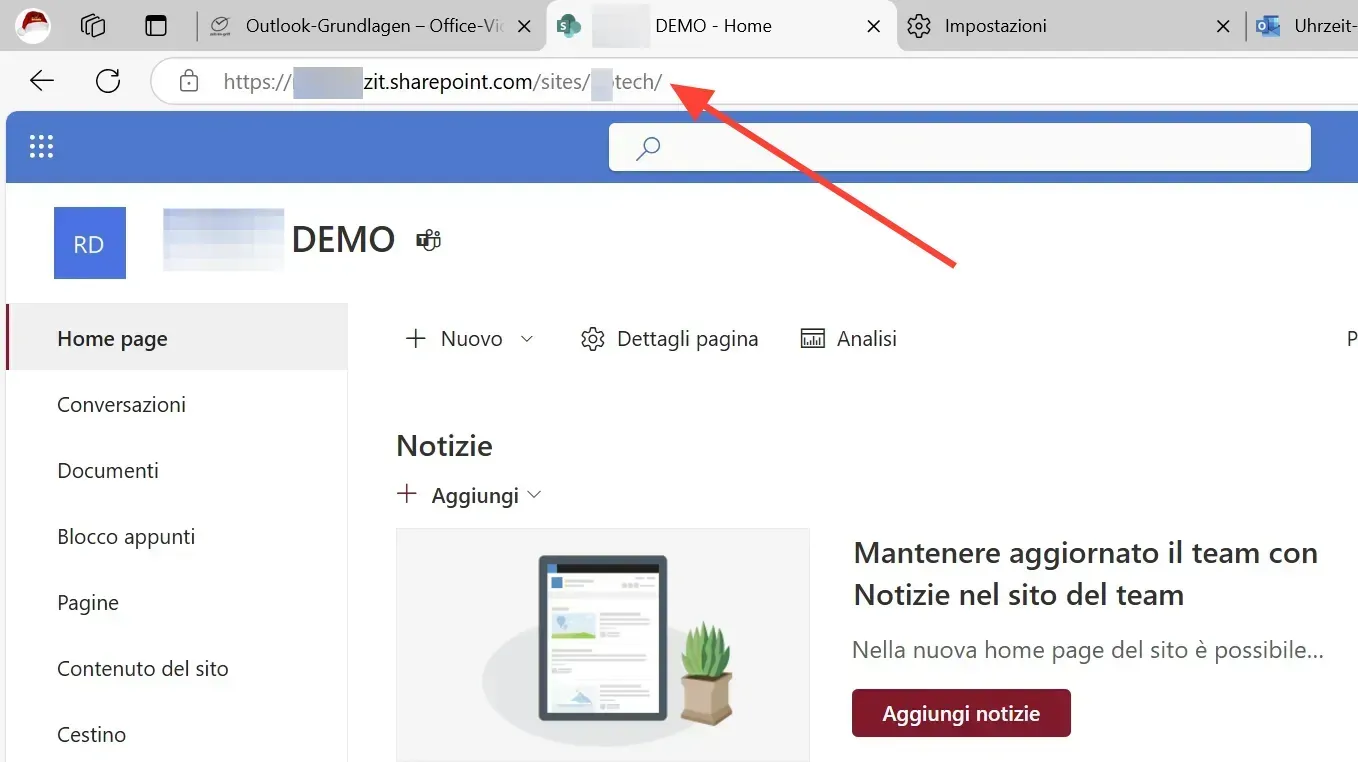
Method 2: Directly via the URL
- Open a URL of your SharePoint site – for example, the link to a folder in a document library.
- In the address bar, remove everything after “/sites/Sitename/”.
- Press Enter – you will land on the main page of the site.
Find the gear icon
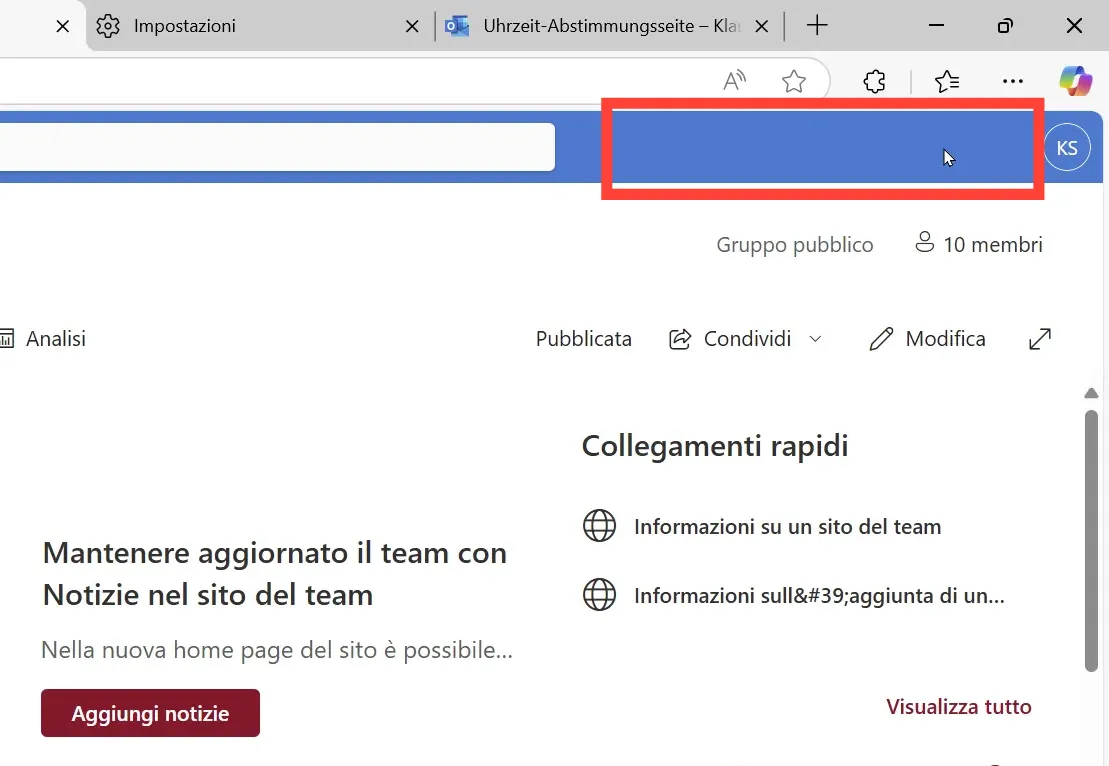
On the main page, look for the gear icon in the top right. Don’t be surprised if it’s not there immediately:
- 30 seconds of patience up to a minute – SharePoint checks your permissions in the background.
- Still not appearing? Then you lack owner permissions. A quick call to IT, and it will work.
Add app and select calendar
- Click the gear icon.
- Select “Add an app” from the menu.
- You will now see the list of available apps.
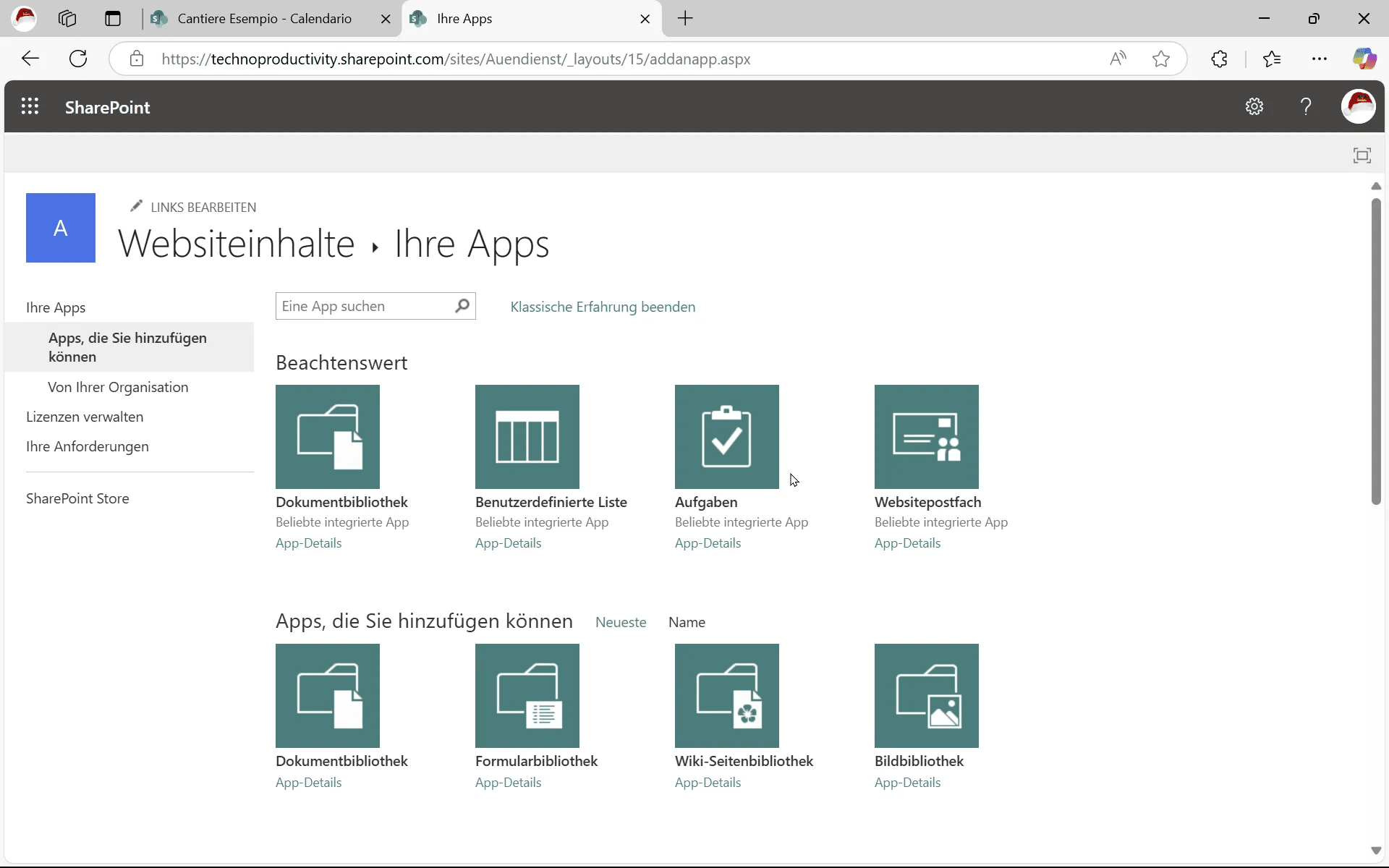
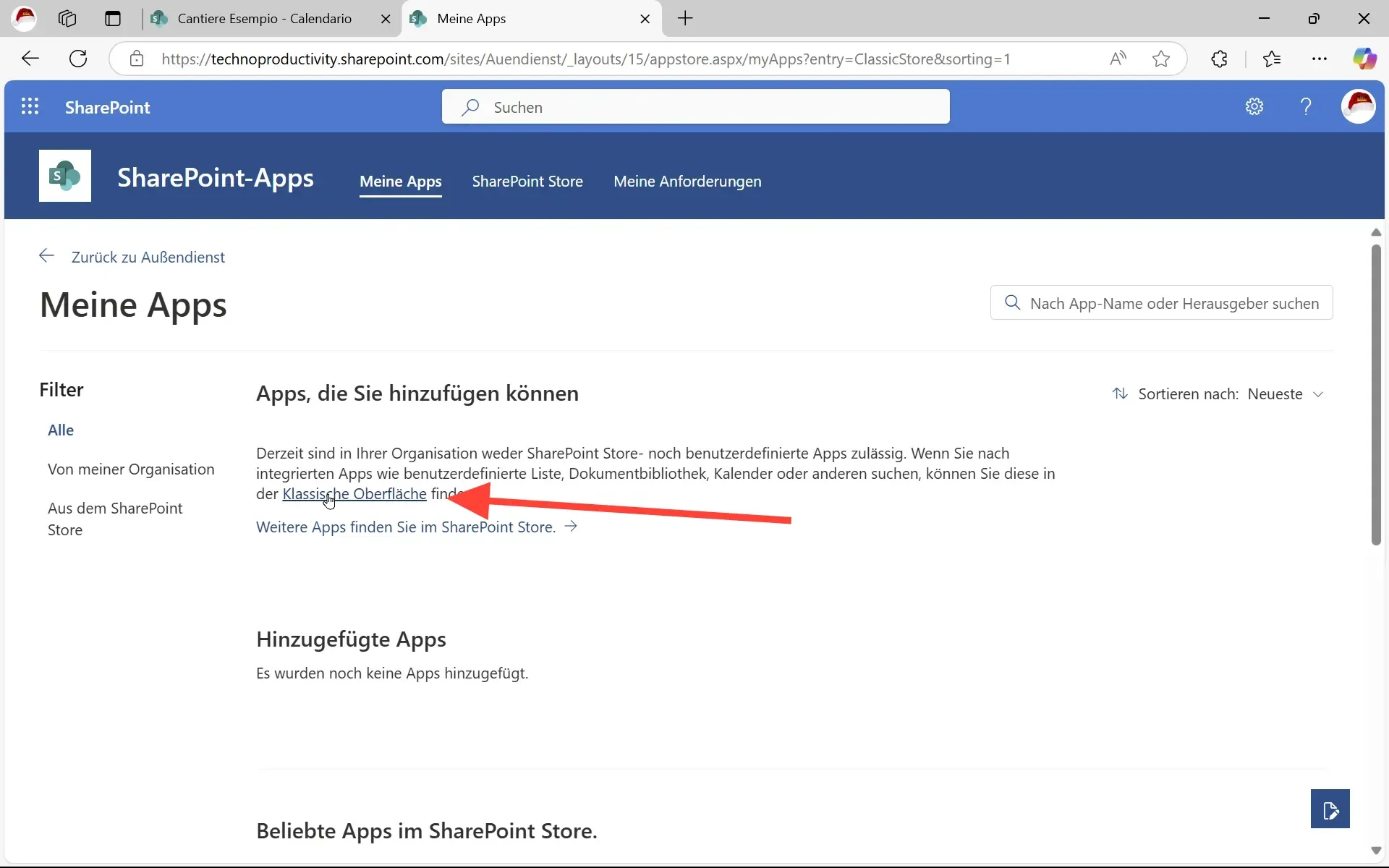
If the calendar is missing: Switch to the classic interface
Don’t see a calendar in the list? Microsoft has modernized the app overview; some classics are no longer listed there:
- Scroll to the very top of the app list.
- Click the “Classic experience” link.
- The standard apps, including the calendar, appear in the classic view.
Create the construction site calendar
- Click the calendar icon.
- Assign a meaningful name – for example, “Construction Site Milan North” instead of just “Calendar 1”.
- Click “Create”.
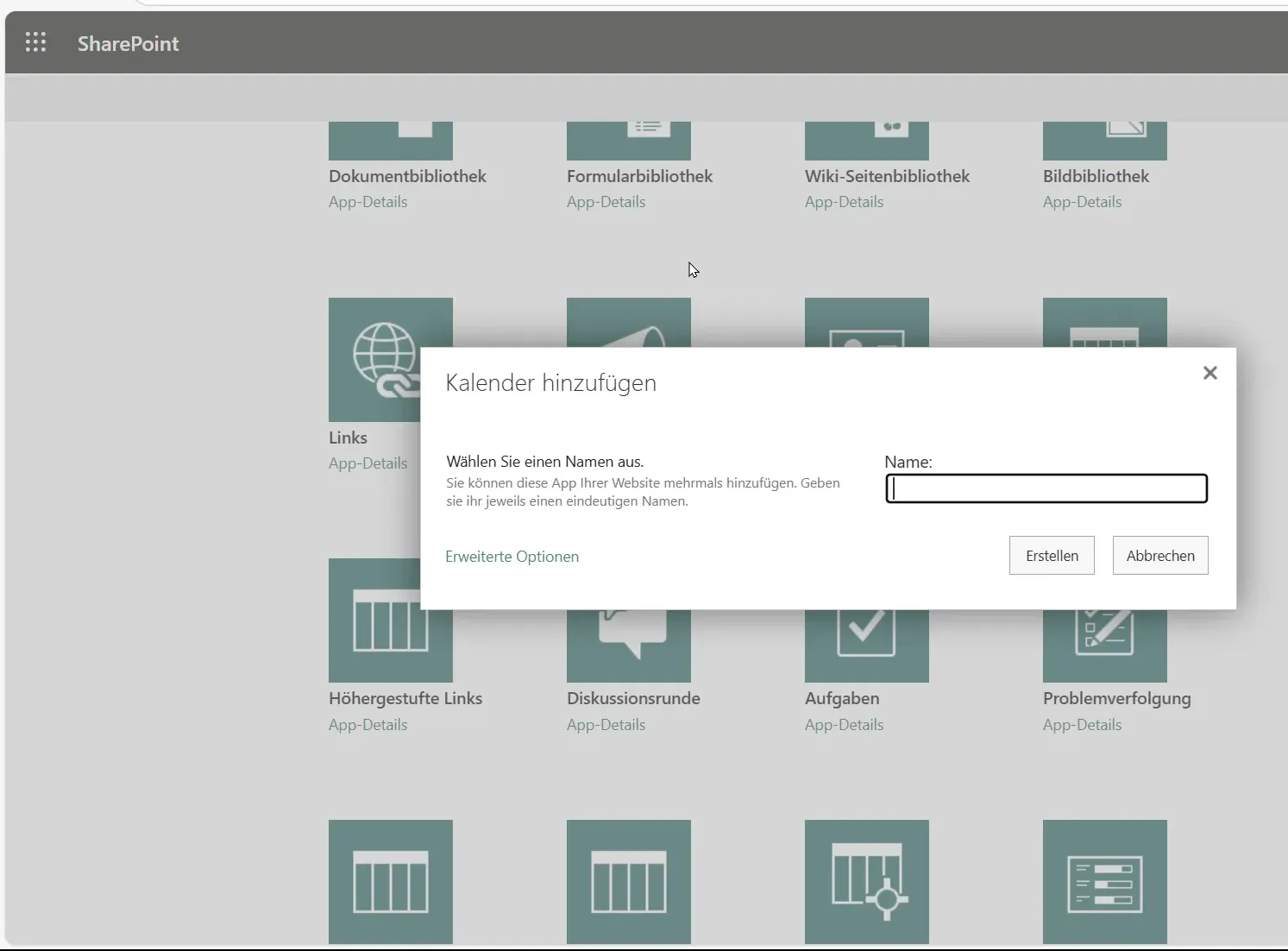
Important: Create the calendar on the SharePoint site that belongs to the construction site. If you manage multiple projects simultaneously, you should clarify beforehand whether each construction site gets its own page or if multiple calendars are located on a shared page.
One page or several? A question of permissions
- Separate page per construction site: Clean separation, each construction site has its own permissions, documents, and calendar. Recommended if different teams are involved.
- Multiple calendars on one page: Practical if the same people need access to all construction sites – permission management becomes much simpler.
- Example setup for a region: A SharePoint page “Milan Region” with three calendars – “Construction Site North”, “Construction Site South”, “Central Delivery Dates”.
Share the calendar with the team
Created does not mean used yet. For your employees to find the calendar, they need the link – and ideally a brief explanation of its purpose.
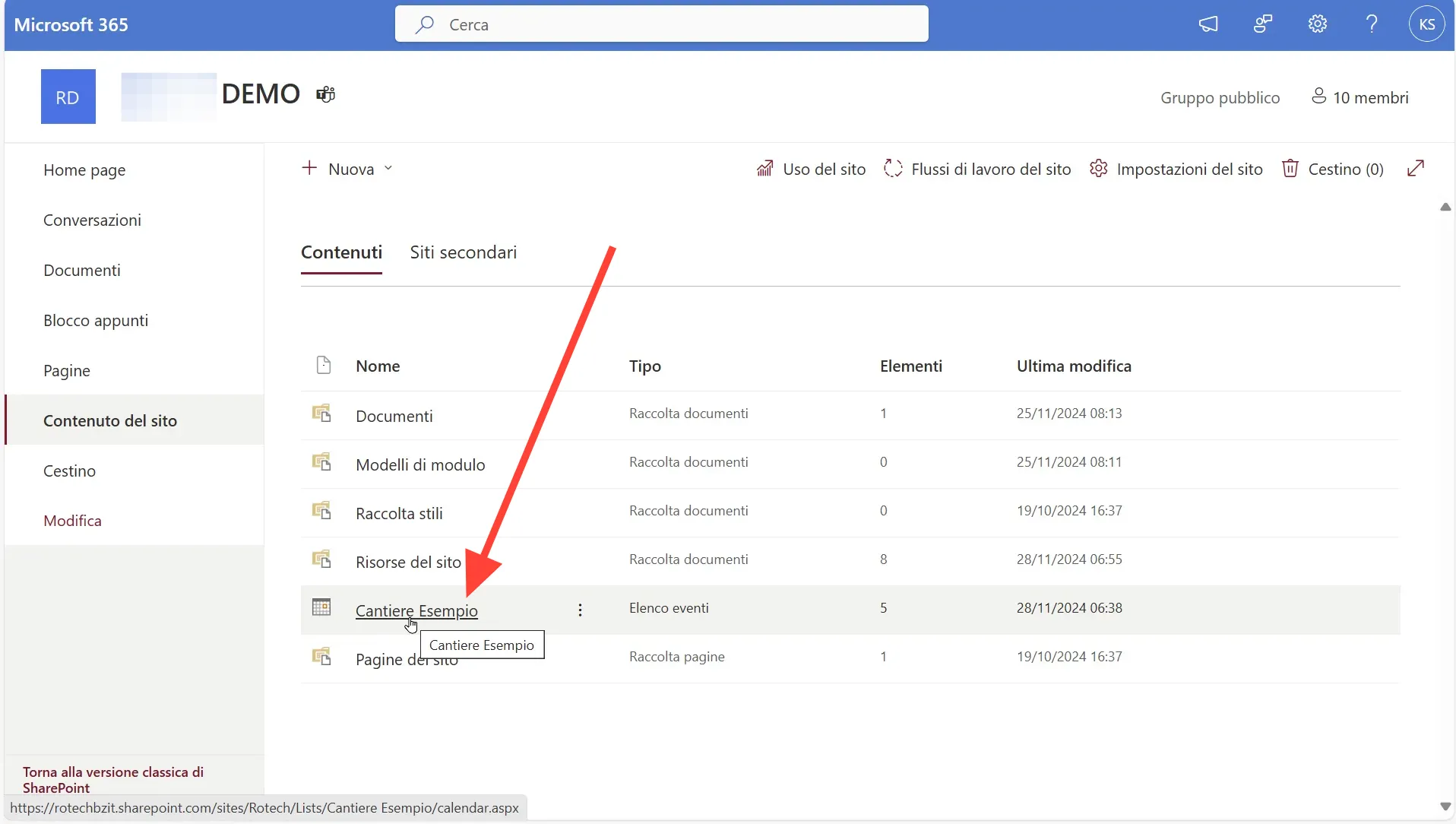
- Open the calendar.
- Copy the URL from the address bar.
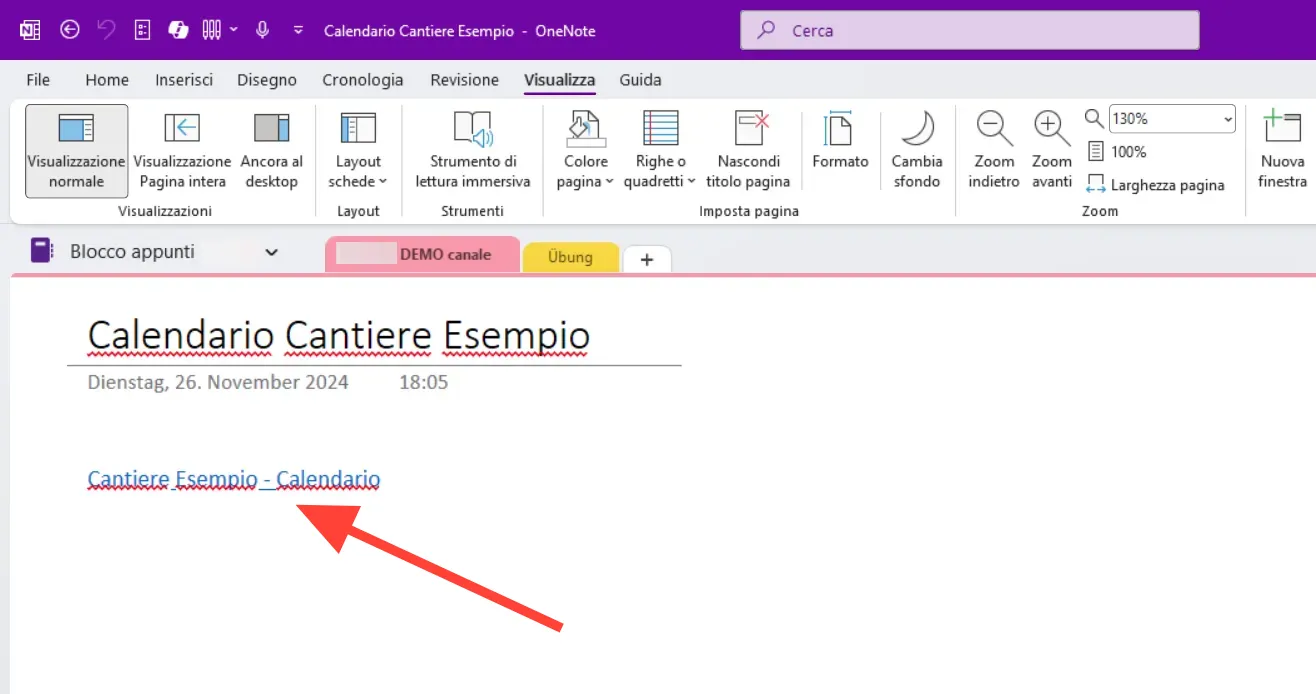
- Paste the link into an email, a Teams channel, or the OneNote notebook for the construction site.
Outlook, Teams, and OneNote display the link not as a cryptic URL, but with the calendar’s name. So your colleagues will immediately see that it is “Construction Site Milan North”.
Set up notifications so no appointment is missed
If a delivery date shifts, the team should be informed – but not every click in the calendar should trigger an email. SharePoint allows two notification levels:
Notification for a single event
- Open the event in the calendar.
- Click “Set Alert” at the top.
- Define who should be notified when.
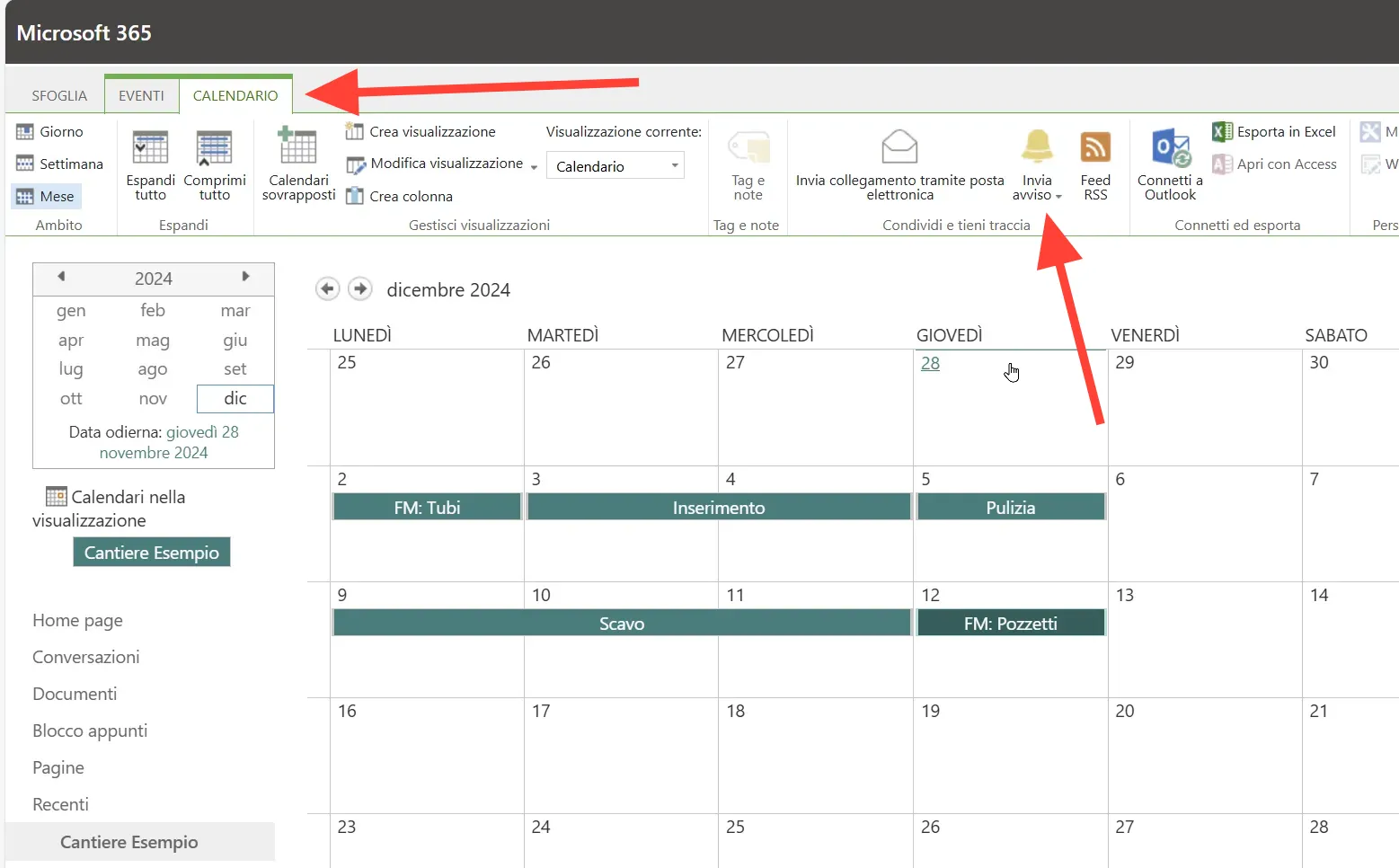
Notifications for the entire calendar
- Click the “Calendar” tab.
- Select “Add Alert”.
- Answer three questions: Which changes, by whom, how often.
Which changes should be reported?
- All changes – maximum transparency, highest email volume.
- Only new items – ideal if someone needs to keep an eye on new delivery dates.
- Only changes to existing items – ideal for teams that need to know if an appointment is rescheduled.
- Only deletions – important if someone is responsible for ensuring no appointment is lost.
From whom should the changes come?
- All persons – You see every change, no matter by whom.
- Only other persons – excludes your own changes, saves mailbox volume.
- Items you created – ideal for construction managers who want to keep track of their own appointments.
- Items you last modified – similar, but more dynamic.
How often should notifications be sent?
- Immediately for every change – only useful for very critical appointments.
- Daily summary, for example at 7 AM – ideal as a first look at the start of the day.
- Weekly summary, for example Mondays at 2 PM – suitable before the weekly meeting.
Every notification email contains an unsubscribe link. If the frequency is too high, your employee can unsubscribe at any time – without a new ticket loop with IT.
Integrate the SharePoint calendar into Outlook
This is the real leverage: Once the calendar appears in Outlook, your employees don’t need to open SharePoint separately. They see the construction site appointments directly alongside their own.
- Open the SharePoint calendar in the browser.
- Click the “Outlook” button.
- Follow the instructions – Outlook will ask for confirmation once, then the calendar is connected.
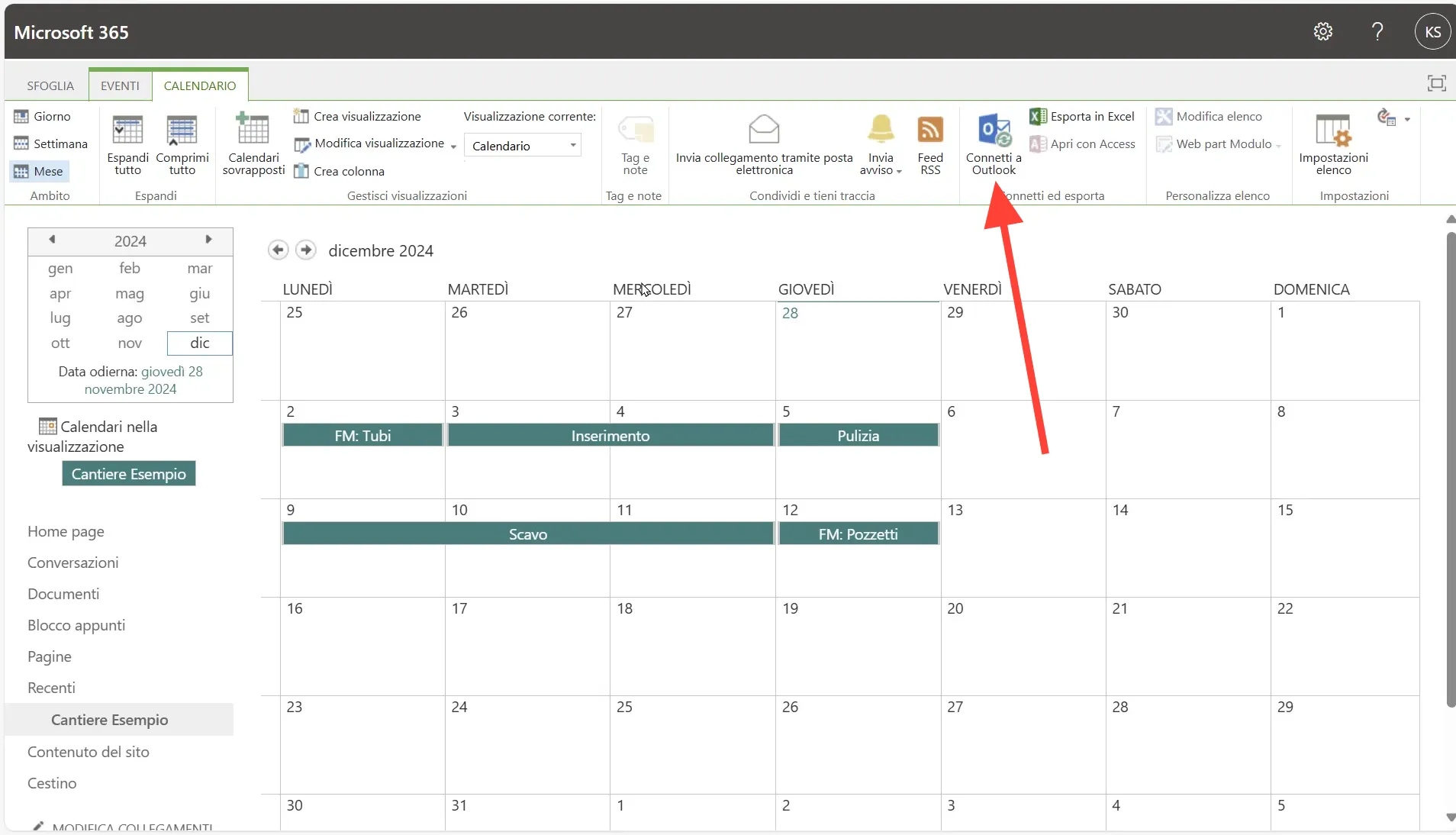
From now on, your employees will see the calendar directly in Outlook – with all the functions they are familiar with from their personal calendar: open appointment details, identify conflicts, check in weekly or monthly view.
Frequently Asked Questions about SharePoint Construction Site Calendars
Can multiple calendars be on one SharePoint site?
Yes. Any number of calendars can be created on a SharePoint site. This is useful if the same people need access to multiple projects – for example, one calendar per construction site, plus a calendar with school holidays for all relevant federal states and one with customer events.
How often are notifications sent?
As often as you set it. From “immediately for every change” to “daily summary at 7 AM” to “weekly before the Monday meeting” – each team member chooses their own settings.
Does the calendar also work offline?
Via Outlook synchronization: yes. Appointments that have arrived in Outlook are available to your employees even without internet – on the construction site, on the train, in the underground car park. Changes are delivered as soon as a connection is re-established.
Who can change appointments?
You define this in SharePoint’s permission management. By default, all site members can create and edit appointments. With finer permissions, read-only rights can also be granted – for example, for subcontractors who can see appointments but are not allowed to reschedule anything.
Can the calendar be shared with external service providers?
Yes. Using SharePoint’s sharing function, you can open individual calendars, folders, or the entire site to external persons. They integrate the calendar into their own Outlook in the same way and see the appointments there – permissions determine whether they can only read or also edit.
With SharePoint calendars, your construction managers, project managers, and subcontractors stay on the same page – without anyone having to search through five emails to find the current delivery date. The combination of centralized SharePoint management and Outlook visibility for your employees is the lever that truly relieves project communication on the construction site.