

In Outlook, OneNote, and Microsoft Word, you can easily dictate texts without additional software: Office 365 includes an integrated dictation function that most people have not yet discovered. 15 years ago, we were always promised that we could easily speak everything into the computer with great tools…
Speech Recognition/Dictation Finally Works
In the past, it was cumbersome, only worked with special software (or terrible results), and the software required hours of training… most users quickly gave up frustrated with such attempts. But now, this has changed significantly, and it works really well directly in Office 365 applications.
In the following video, I will show you how you can dictate your texts (instead of typing) in a way that saves you nerves and time – and below the video as text with screenshots.
Activate, Start, and Stop Dictation in Office
To use the dictation feature in Office 365, simply open a new Outlook email, a Word document, or a page in OneNote. On the tab that is usually activated first in the menu bar – in Outlook the Message tab, in Word and OneNote the Home tab – you will find a Voice group with a small microphone icon for Dictate. Click on it once or use the keyboard shortcut Alt + Ö.
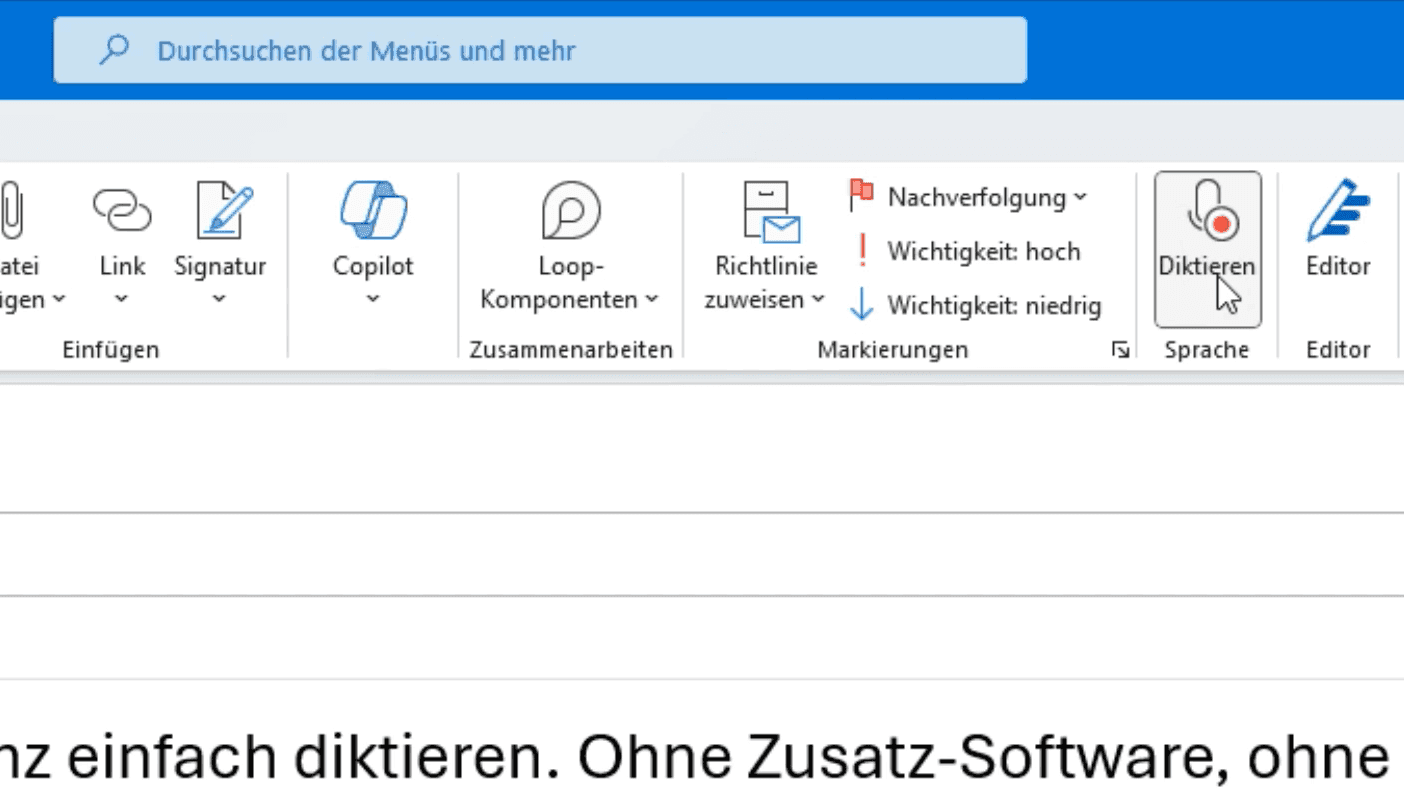
Simple Control of the Dictation Feature
When you click the microphone icon, your dictation feature is active. A small, floating toolbar appears to control your voice input. You can drag this bar to a suitable place on the screen where it is not in your way.
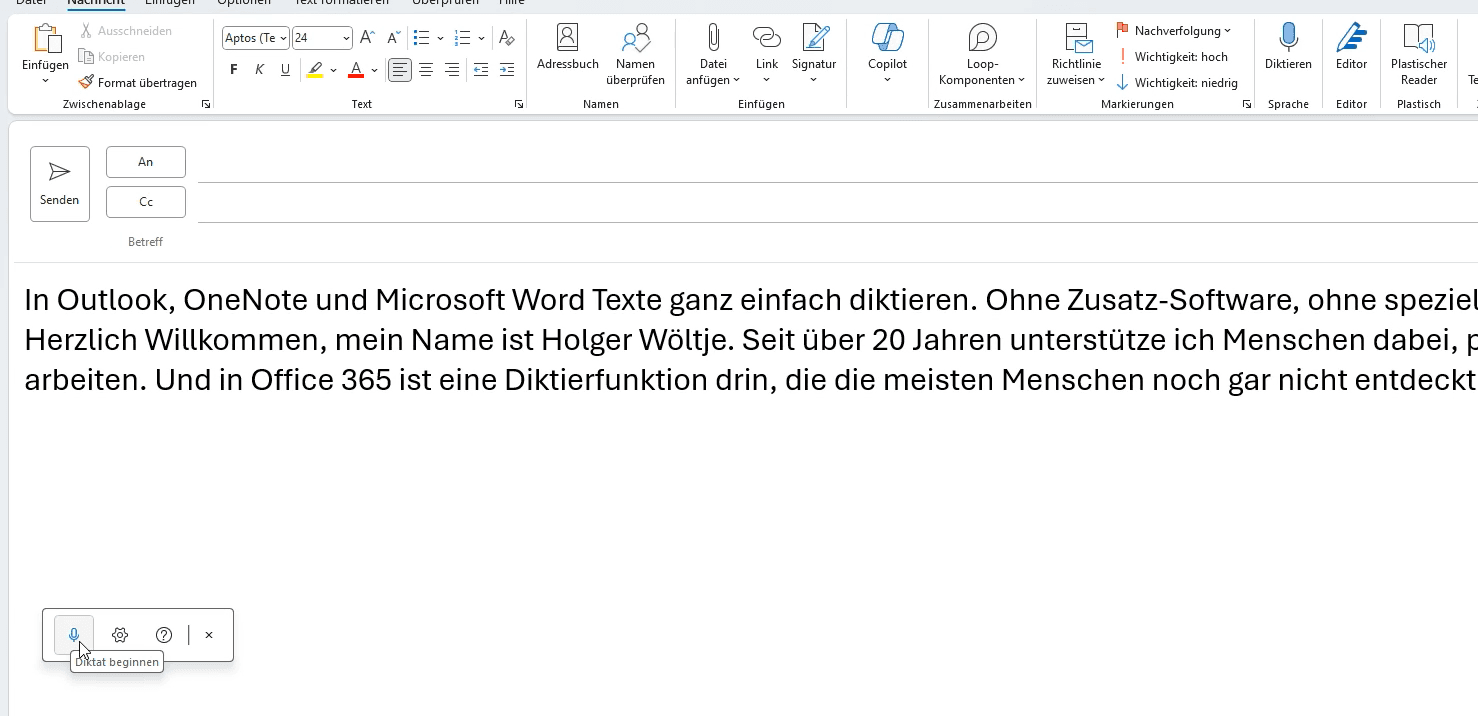
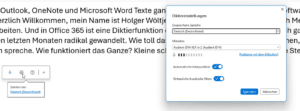
The small microphone icon is circled when the dictation feature is active and listening to your voice input. To deactivate the dictation feature, click the icon again or use Alt + Ö.
Adjust Settings
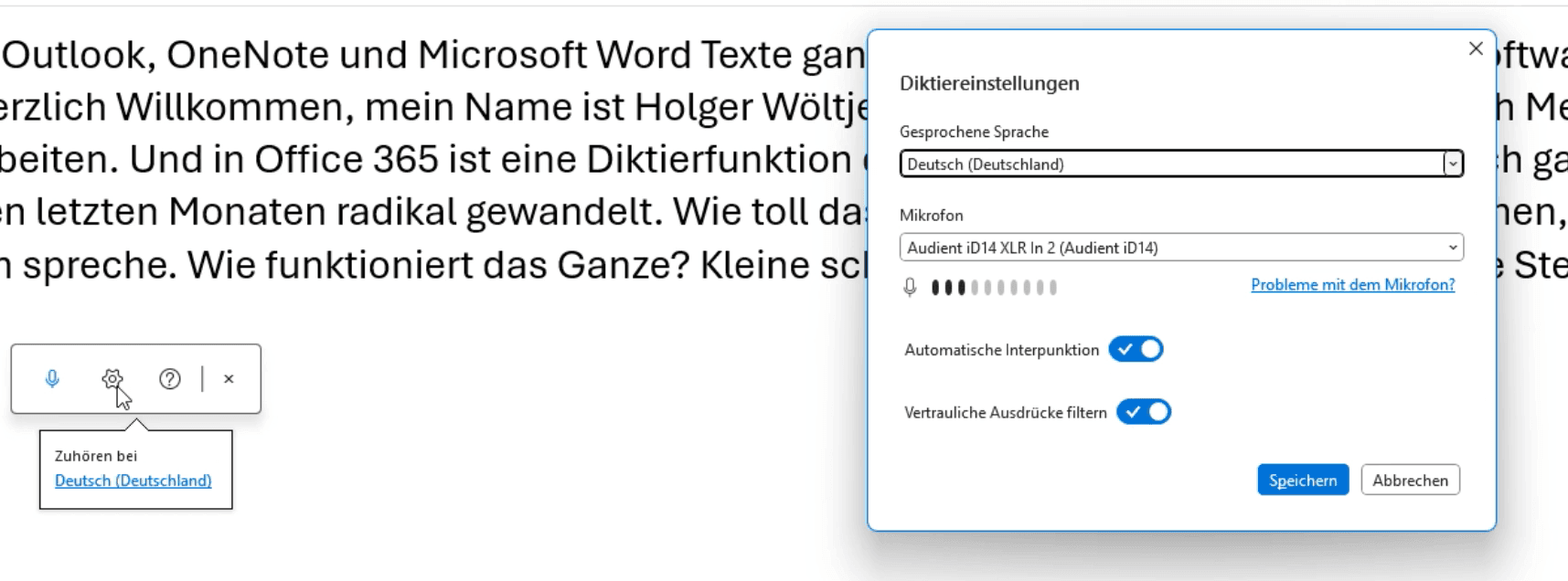
Use the small gear icon in the toolbar to select the correct microphone and change the language if necessary.
-
- Microphone Selection: Choose the microphone you want to use. For laptops, the built-in microphone is often sufficient; high-quality models (e.g., from Lenovo or HP) work particularly well here. If you use a headset (e.g., for video conferences/Teams meetings), just try to see if the recognition works even better with it.
-
- Automatic Punctuation: Turn this option on. It works very well.
-
- Filter Profanity: Activate this option to replace swear words, etc., with asterisks.
Set Language
If you sometimes use English expressions in your German texts, they are often recognized correctly. However, entire sentences in another language usually lead to errors. Simply adjust the Spoken Language in the settings if you are dictating in another language. Then switch back when you dictate in German again.
Tips
-
- New Paragraph and New Line: Say “new paragraph” or “new line” to format the text accordingly.
-
- Check Microphone: Ensure that you a.) have selected the correct microphone (e.g., your headset instead of a microphone integrated into the webcam) and b.) your microphone is working properly (e.g., headset mute is deactivated) before you start dictating.
“I have the impression that with dictation in Office 365, we have now reached the technological level we always wished for 20 years ago.” – Holger Wöltje
When dictating, no spelling errors occur – at most, speech recognition errors. However, these are relatively rare, as the accuracy of recognition has improved significantly.
A Few More Application Examples:
With the dictation feature, you can significantly increase your efficiency:
-
- Write Emails: Instead of laboriously typing, simply dictate your emails.
-
- Create Documents: Capture long texts faster.
-
- Notes in OneNote: Quickly store thoughts and create structured notes.
Try it yourself and experience how this feature can simplify your work.
FAQ
What voice commands can I use when dictating in Office 365?
You can simply speak commands like „new paragraph,“ „new line,“ and various punctuation marks such as comma, period, etc. The software will implement these accordingly.
How do I activate the dictation feature in Outlook?
Press the keyboard shortcut Alt+Ö or click the microphone icon.
Does dictation in Outlook & Word also work in English/other languages?
Yes, you can switch the language using the gear icon (in the dictation toolbar).
Which Office version supports the dictation feature?
The dictation feature is integrated into Office 365 and works in Outlook, OneNote, and Word.
Do I need a special microphone for dictation?
The built-in laptop microphone is often sufficient, but a headset improves recognition quality.