

Benefits of Targeted Alert Usage
When you turn off alerts, you work more productively:
- Focused Work: You are not constantly interrupted by emails that can wait or are unimportant.
- Prioritization: You do not miss important emails because you set targeted notifications (which you then notice more consciously because Outlook displays fewer and less frequent pop-up windows instead of three hundred times a day).
- Time Management: You can process emails in batches/blocks, which is less annoying and you finish faster.
“Have you ever thought about how often unnecessary email notifications interrupt you? When you turn off alerts, you work more efficiently and have more time for important tasks.“ Holger Wöltje
Disable Alerts for New Outlook Emails (Step by Step)
To turn off alerts for new emails:
- Click the “File” command (far left in the Outlook ribbon).
- Then select “Options” (bottom left)…
- … and in the Outlook Options that open, select “Mail” at the top left.
- Scroll down to the heading “Message arrival”.
- Remove the checkmarks from the following options to disable all notifications:
- “Play a sound”
- “Change the mouse pointer”
- “Show an envelope icon”
- “Display a Desktop Alert”
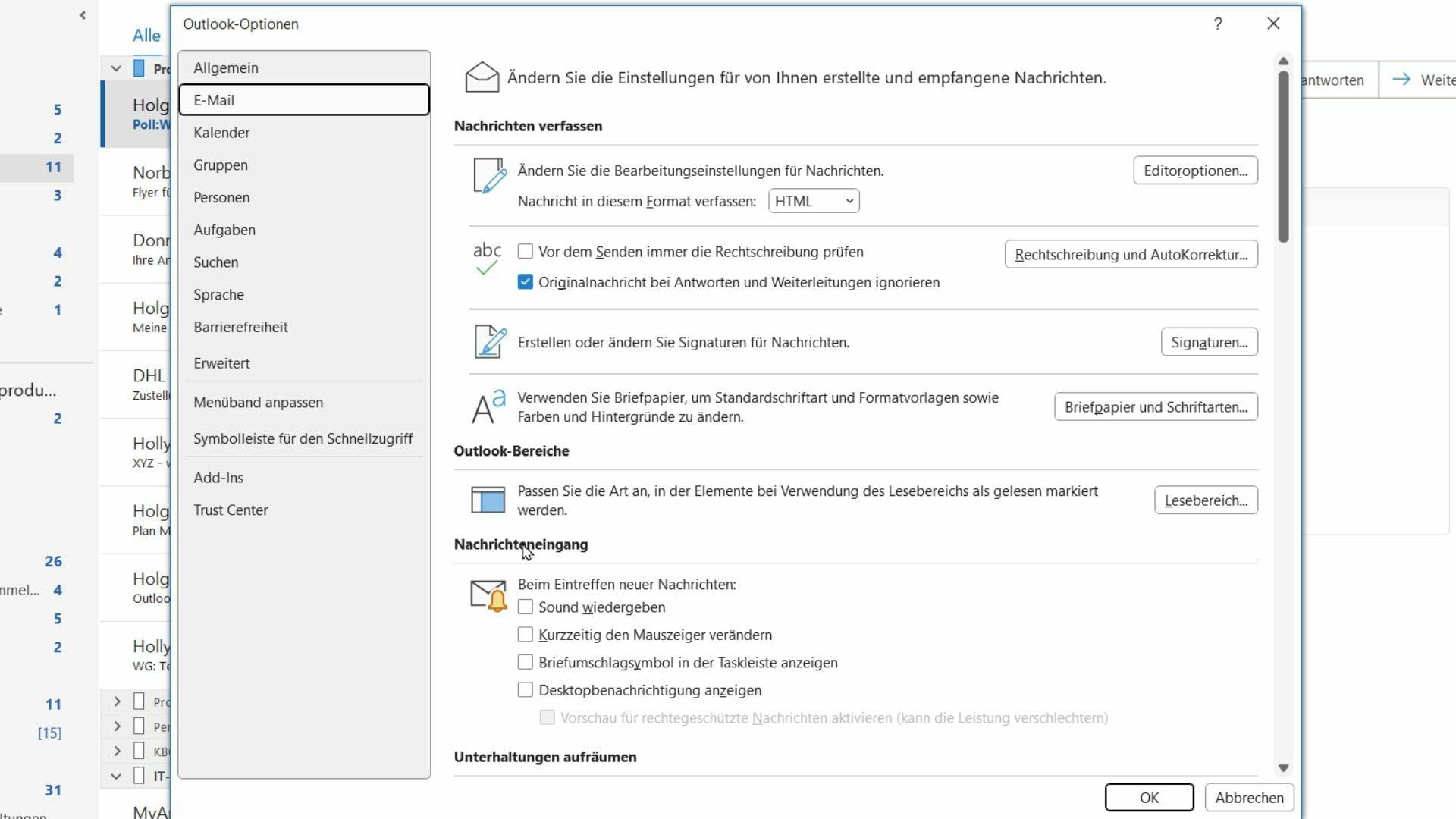
These settings prevent you from being disturbed by unimportant emails. Deactivate all checkboxes and confirm with OK.
Re-enable Desktop Alerts for Specific Emails
Sometimes there are emails that require your immediate attention, for example messages from your manager. To re-enable notifications for specific senders:
- Find an email from the sender (e.g., your manager).
- Right-click this email and select the “Rules” > “Create Rule” command from the context menu.
Outlook automatically adopts the sender and subject of the clicked email and opens a new “Create Rule” dialog box. Here you define for which emails the rule will be executed:
- “From…” / Sender: Select the relevant person here (The sender of the email you right-clicked to create the rule is already entered, e.g., “From Holly Wood”. Simply activate the checkbox – see screenshot – to apply the rule only to emails from this person).
- “Do the following” (Select action): Here you can specify which notification you want to receive, for example “Play a selected sound” or “Advanced Options” to set more details and select “Display a Desktop Alert”.
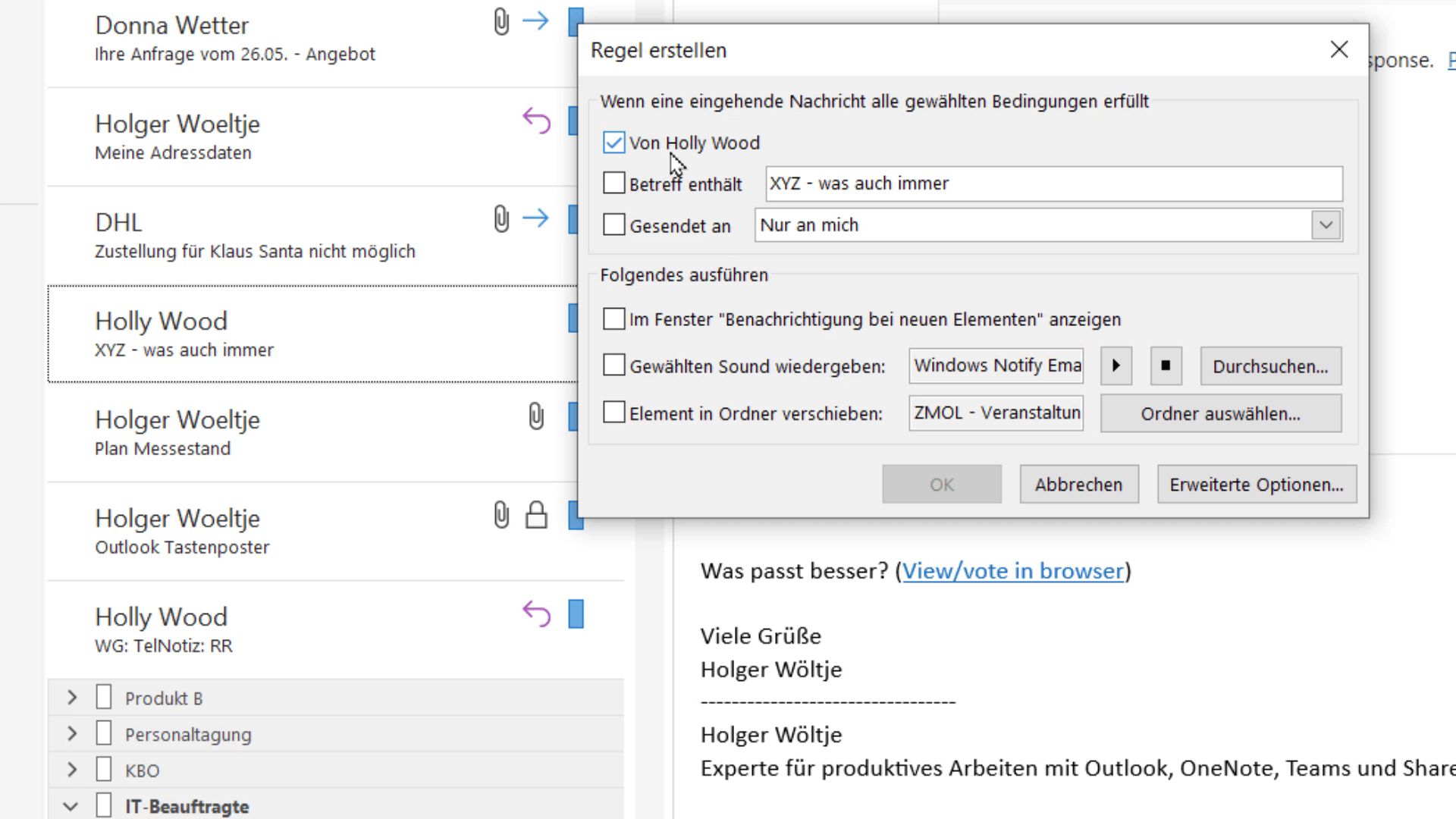
Example:
If your manager marks important emails with the subject “URGENT”, you can create a rule that plays a sound only for these emails:
- Activate the “Subject contains” option.
- Enter the word “URGENT”.
- Select the desired notification.
Confirm with “OK” to save the rule. From now on, you will only receive a notification for these specific emails.
FAQ
How do I disable all email notifications in Outlook?
Select “File -> Options -> Mail” in the ribbon and remove all checkmarks under “Message arrival” (see details above).
Can I enable notifications only for specific senders?
Yes, this is possible. Right-click an email from the desired sender and define a rule via “Rules -> Create Rule” (the sender is already preselected. You set the notification and confirm with “OK”).
What do I do if I need quiet but still do not want to miss urgent emails?
Use a rule to set up desktop alerts only for important senders or specific keywords in the subject. This way you remain undisturbed and still do not miss any important messages.
How do I create a rule for emails with specific words in the subject?
When creating the rule, select “Subject contains” (or in the advanced options “with specific words in the subject”) and enter the desired word.
Why should I disable the alert function?
Constant email notifications interrupt your work and reduce your productivity. When you turn off these notifications, you can remain focused.
In short: Use the notification features in Outlook wisely and adapt them to your needs. This way you keep track of your emails and work more effectively instead of being constantly distracted. Try it out and enjoy the peace while working!